
AINEO Networks engineered, maintains and expands the best hosted business email service you can find—QuickerWeb.com. If you are a registered QuickerWeb user and want to use the service on your iPhone or iPad to work with your business email account on Quickerweb, please follow this step-by-step description.
1) On your device, please find the settings icon and open.
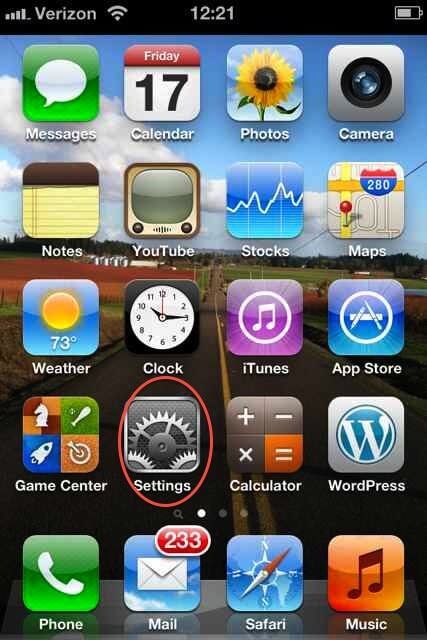
2) Select Mail, Contacts, Calendars in Settings

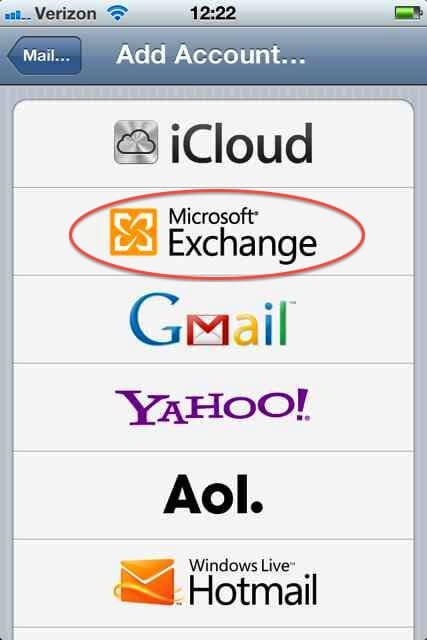
3) Add Account

4) Select MS Exchange for your account type (this will enable you to synchronize contacts, mail, tasks, calendar
5) Input your email account in the Email section as well as the username and whatever password you use to connect to Quickerweb Biz Email. Remember this is you@yourcompany.com, whatever your domain is. Here we use bqf.me as an example domain
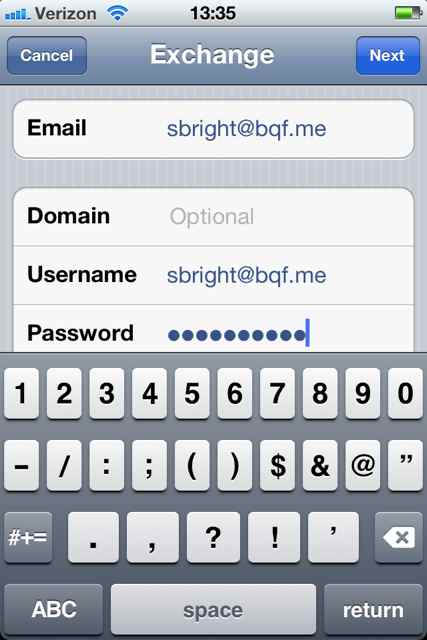
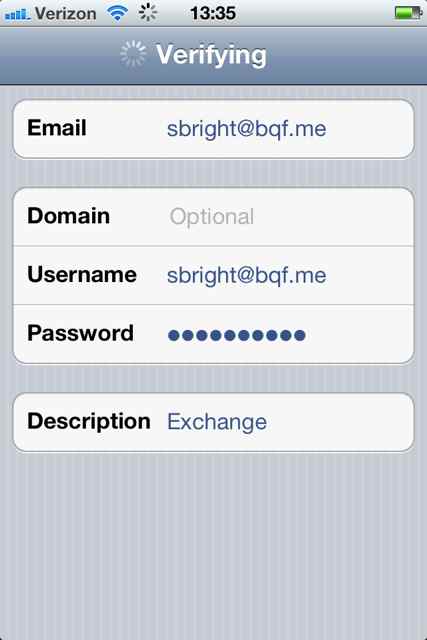
6) Then select ‘Next’. Please make sure you are using the password you use to access your webmail. Then when you select ‘Next’ you will see the device trying to verify the account
7) You will get a message saying “Cannot Verify Server Identity”. Ignore this and select ‘Continue’.

8) Select ‘Next’ again.

9) Here you will need to input the Quickerweb server name which is zmail.aineo.net. Make sure your user name and password field are still populated as well as the server name you have just input.
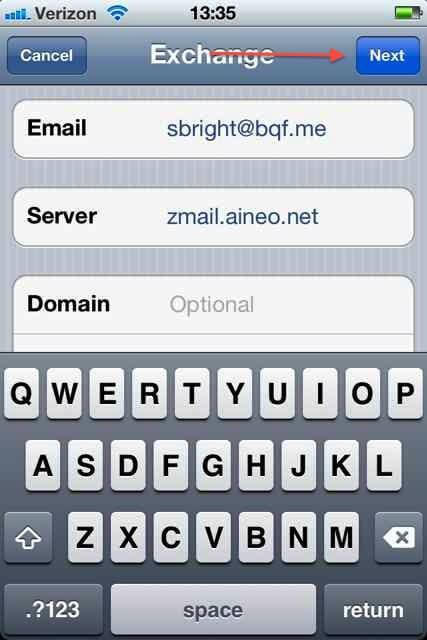
10) Select next and watch it verify your business email account.
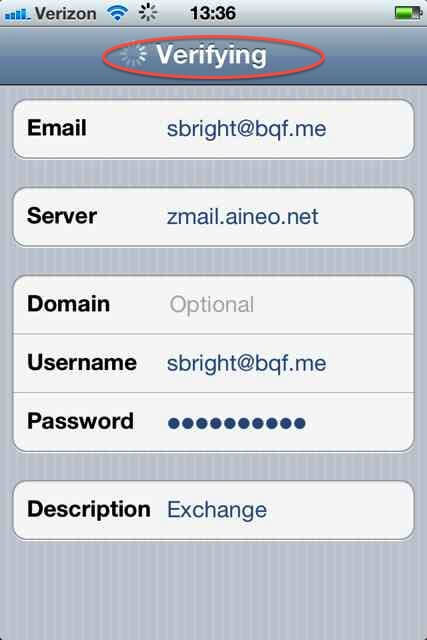
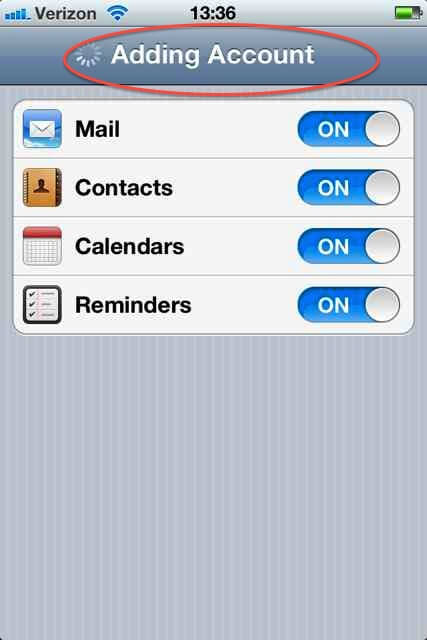
11) This is where you select what you want to sync and select ‘Next’. Most users want to synchronize all of their server data with the device. Just slide the switch to on for what areas you want to have on your device.

12) After you have selected ‘Next’ you will see ‘Adding Account’ as the device connects the various services on the account you want to use.
That’s all there is to it. Now enjoy the internet’s best business email on your mobile device!